 Undertekst
How to add text to a video on iPhone
The Photos app can’t put text on a video: Markup, where Add Text lives, only works on photos. For that you need iMovie, which is free from Apple. Start a movie with your video, tap the clip in the timeline, tap the Titles button and pick a style. Then tap the sample text in the picture, tap Edit, type your text and tap Done. Drag it where you want it and pinch to change its size. If the text is what someone says, a captions app can write it out for you, so you don’t have to type every line.
Why Photos can’t do it
Tap Edit on a video in Photos and you get tools to trim it, change the speed and sound, crop and straighten it, and adjust the colour. The Markup button with Add Text, signatures and stickers shows up only when you edit a photo. Apple’s guide to editing videos in Photos doesn’t mention text at all.
Clips, Apple’s small app that put live captions and text on videos, is no longer an option: Apple discontinued it in October 2025. That leaves iMovie, which is free from Apple and still updated.
Add text in iMovie, step by step
- 1Start a movieNew movie, then pick your video.
- 2Tap the clipThe inspector opens at the bottom.
- 3TitlesTap the T button and choose a style.
- 4WriteTap the sample text, then Edit.
- 5Place itDrag to move, pinch to resize.
- Open iMovie, start a new movie and pick your video.
- Tap the clip in the timeline. The inspector opens at the bottom of the screen.
- Tap the Titles button (the T) and tap a style. A sample text appears in the picture.
- Tap the sample text, tap Edit, write your own and tap Done on the keyboard.
- Drag the text to move it and pinch it to make it bigger or smaller. When you’re happy, tap Done, then save the movie to Photos with Save Video.
The same inspector has Font and Color. Under Style, Lower Third puts the text near the bottom of the picture. Under More you can turn on Text Shadow, Uppercase and Full Clip Duration, which keeps the text on for the whole clip.
A clip has room for one title. To show different text at different moments, split the clip first: swipe down over the playhead, as if you were cutting it. Each piece then gets its own title. That’s also how you put subtitles on a video in iMovie, one line at a time.
Which way fits your video
- PhotosMarkup and Add Text work on photos only.No text on videoBuilt in
- iMovieTitles you type yourself, one per clip.FreeBy handFrom Apple
- UndertekstWrites out what’s said, timed line by line.$1.99 onceOn the iPhoneNo account
- Other editorsText plus effects, stickers and templates.Often needs an accountPrivacy varies
Video editors such as Edits, CapCut and Adobe Premiere also add text, with more effects to choose from. Edits makes you sign in with an Instagram account. Here’s how they compare, and what their App Store labels say.
When the text is what someone says
 12
 34
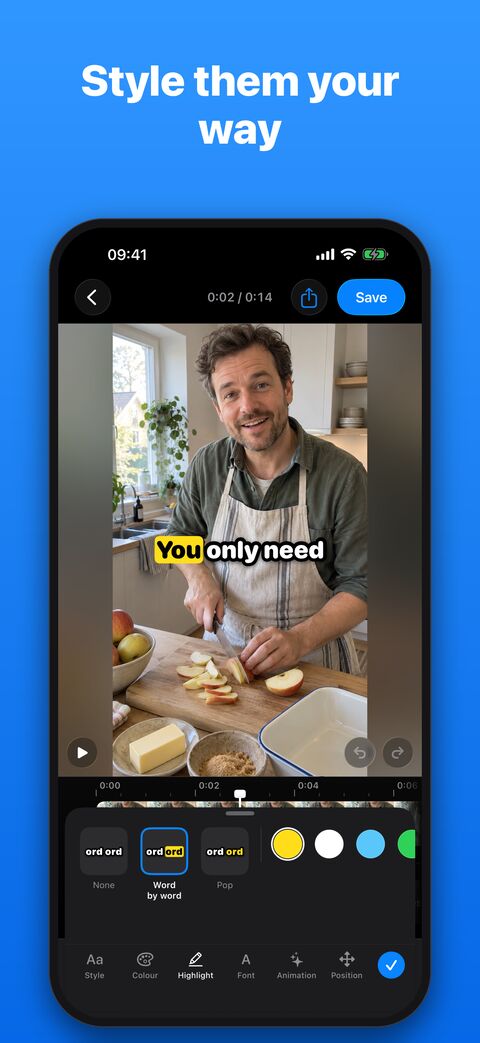
- 1Edit: fix the words in a line
- 2Drag the text on the video, pinch to resize
- 3Font: five typefaces
- 4Position: top, middle or bottom
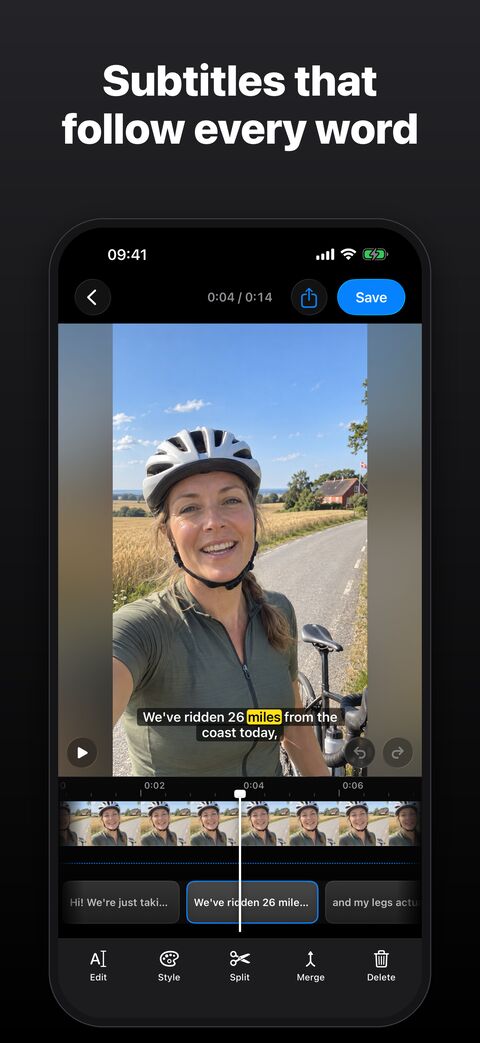
Typing a title for every sentence works for a short clip, but in a two-minute video it’s an evening’s work. Undertekst does the typing for you:
- Open Undertekst, tap Choose Video, pick the video and choose the language that’s spoken.
- The speech is written out on your iPhone and timed to the video, line by line. Tap a line and tap Edit to fix a word.
- Tap Style to pick the look. Font has five typefaces, and under Position you place the text at the top, middle or bottom. You can also drag the text on the video and pinch it to resize.
- Want a line nobody says, like a place name or a date? Move the playhead to a quiet part and tap Add.
- Tap Save and Share, then Save Video to Photos. The text is burned into a new copy; your original stays as it was.
The video never leaves your iPhone, and you don’t need an account. Undertekst’s App Store label shows no data used to track you. Undertekst costs $1.99, once.
Sources, checked 20 November 2026: Apple: add titles in iMovie on iPhone · Apple: edit videos on iPhone · Apple: Markup · PetaPixel: Clips discontinued