 Undertekst
Open captions, closed captions and subtitles: what’s the difference?
Closed captions sit on top of the video and the viewer turns them on and off, usually with a CC button; they come from a separate track or file such as SRT or VTT. Open captions are burned into the picture, so they always show and can’t be turned off. Captions, open or closed, are written for people who can’t hear the sound, so they include who’s speaking and sounds like [door slams]. Subtitles assume you can hear and give only the words, often translated. In the UK, Ireland and many other countries, “subtitles” is used for both.

The three side by side
- Closed captionsA separate track the viewer switches on with CC.Can be turned offSounds and speakersSRT · VTT
- Open captionsBurned into the picture. Always there.Always onYour own stylePart of the video
- SubtitlesOnly the words, often translated.Open or closedDialogue onlyFor hearing viewers
“Open” and “closed” only tell you whether the viewer can hide the text. “Captions” and “subtitles” tell you who it’s written for: someone who can’t hear the sound, or someone who can.
Closed captions
- They live in their own track: a file uploaded next to the video (SRT or VTT on the web, other formats on TV and DVD) or captions the platform makes itself, like YouTube’s automatic ones.
- The viewer chooses. On YouTube that’s the CC button; on an iPhone you can switch them on system-wide under Settings › Accessibility › Subtitles & Captioning › Closed Captions + SDH, and pick their size and colour under Style in the same place.
- You can fix a typo or add a language later without exporting the video again.
- A video sent in Messages or WhatsApp, or posted where you can’t attach a caption file, there’s nowhere for them to go, so only open captions will work.
Open captions (burned in)
Open captions are part of the picture, like a title in a film. You’ll also see them called burned-in, hard-coded or hardsubs.
- They show everywhere, in every app and on every phone, even when the video plays muted in a feed.
- You decide the look: font, size, colour and where on the picture they sit.
- Nobody can turn them off, make them bigger or switch language, and once the video is exported a typo stays. Fix the words before you save.
- The words are pixels, not text, so a screen reader or a search engine can’t read them.
Instagram’s and TikTok’s own automatic captions are closed: viewers can switch them off, and they only exist on that post. If you want your own style on either app, burn the captions in: neither lets you attach a caption file.
Captions or subtitles?
In the US and Canada the two words mean different things. Subtitles give the dialogue, usually translated, for viewers who can hear but don’t understand the language. Captions are for viewers who can’t hear, so they also carry what the sound tells you: who’s talking when the speaker is off screen, [laughter], [phone buzzing], ♪ music ♪.
In the UK, Ireland and many other countries, “subtitles” covers both. The version for deaf viewers is called subtitles for the deaf and hard of hearing, which shows up as SDH on DVDs and streaming menus. The W3C, which writes the web’s accessibility guidelines, notes that the two words are used for the same thing in different parts of the world.
Which one to use
- YouTube: upload an SRT file as closed captions. YouTube can also make automatic ones, but yours will have the names spelled right. Here’s how an SRT file works.
- Instagram Reels and TikTok: burn them in if you want your own style, or turn on the app’s automatic captions. Not both, or the words show twice. Step by step for Reels and TikTok.
- A video you send to someone, in Messages, WhatsApp or by email: burn them in. There’s no track to put closed captions in.
- A course, a website or a web player: use a VTT file, the web’s caption format, and the player shows it as closed captions.
- For deaf and hard of hearing viewers: whichever kind you pick, write captions, not just subtitles. Put in the sounds that matter and say who speaks when it isn’t obvious.
Make both on your iPhone from one set of lines
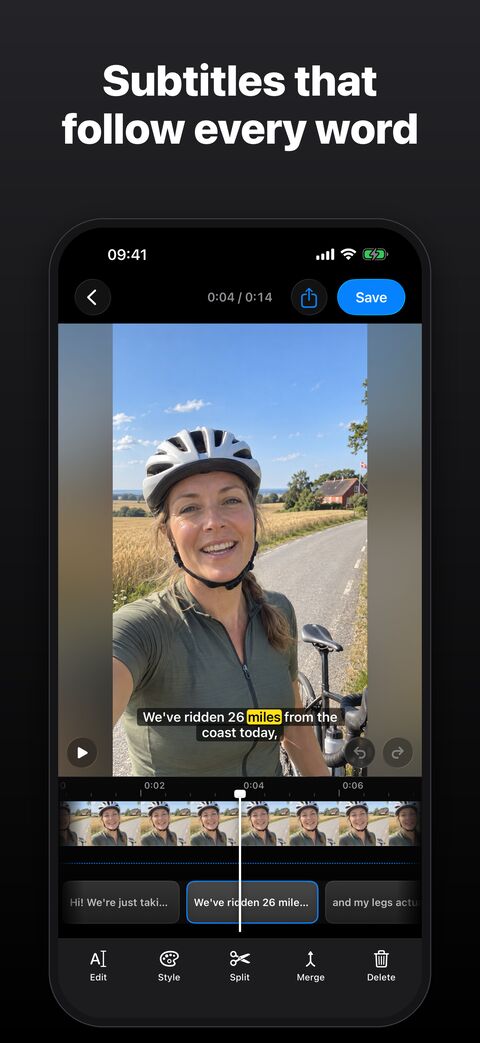 12
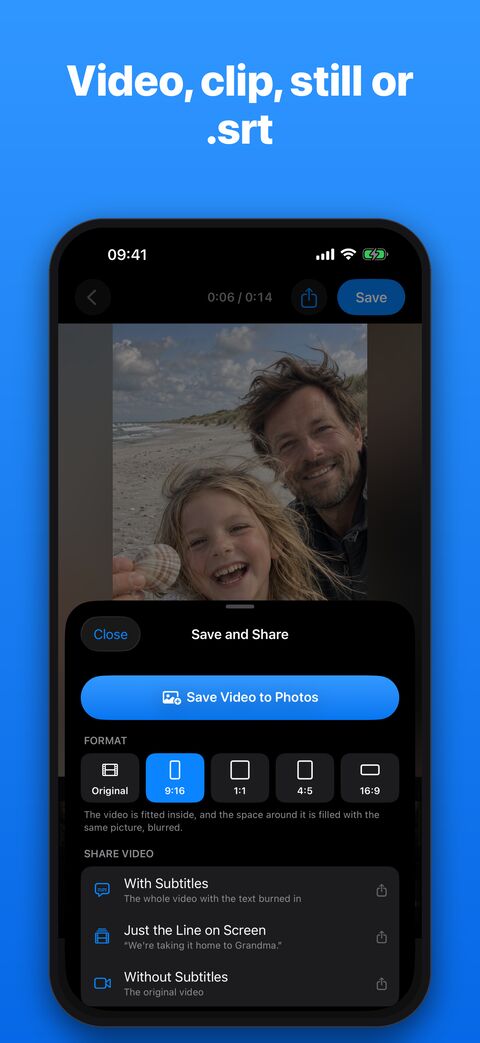 34
- 1The line as it will look in the video
- 2Each line on the timeline: drag its edges to change when it shows
- 3Save Video to Photos: the video with open captions
- 4Without Subtitles: the clean video to pair with the .srt file
- Open Undertekst, tap Choose Video, pick the video and choose the language that’s spoken.
- The speech is written out and timed on your iPhone. Fix any wrong words. Undertekst writes down what’s said, so for true captions, add the sounds yourself: tap a line, tap Edit and type [laughter].
- Tap Save and Share. Save Video to Photos gives you the video with open captions.
- In the same sheet, under Share the Subtitles, choose Subtitle File (.srt) or Web Subtitles (.vtt) for closed captions. Pair the file with the version Without Subtitles, so the words don’t show twice.
I made Undertekst so I didn’t have to upload family videos to get them captioned. The video never leaves your iPhone, and you don’t need an account. Undertekst’s App Store label shows no data used to track you. Undertekst costs $1.99, once.
Sources, checked 20 November 2026: W3C WAI: Captions/Subtitles · Wikipedia: Closed captioning · Apple: subtitles and captions on iPhone · YouTube Help: add subtitles